 PLAY
PLAYHow to Fix a Samsung Watch That Won't Turn On
By Playloot Team · Aug 27, 2026
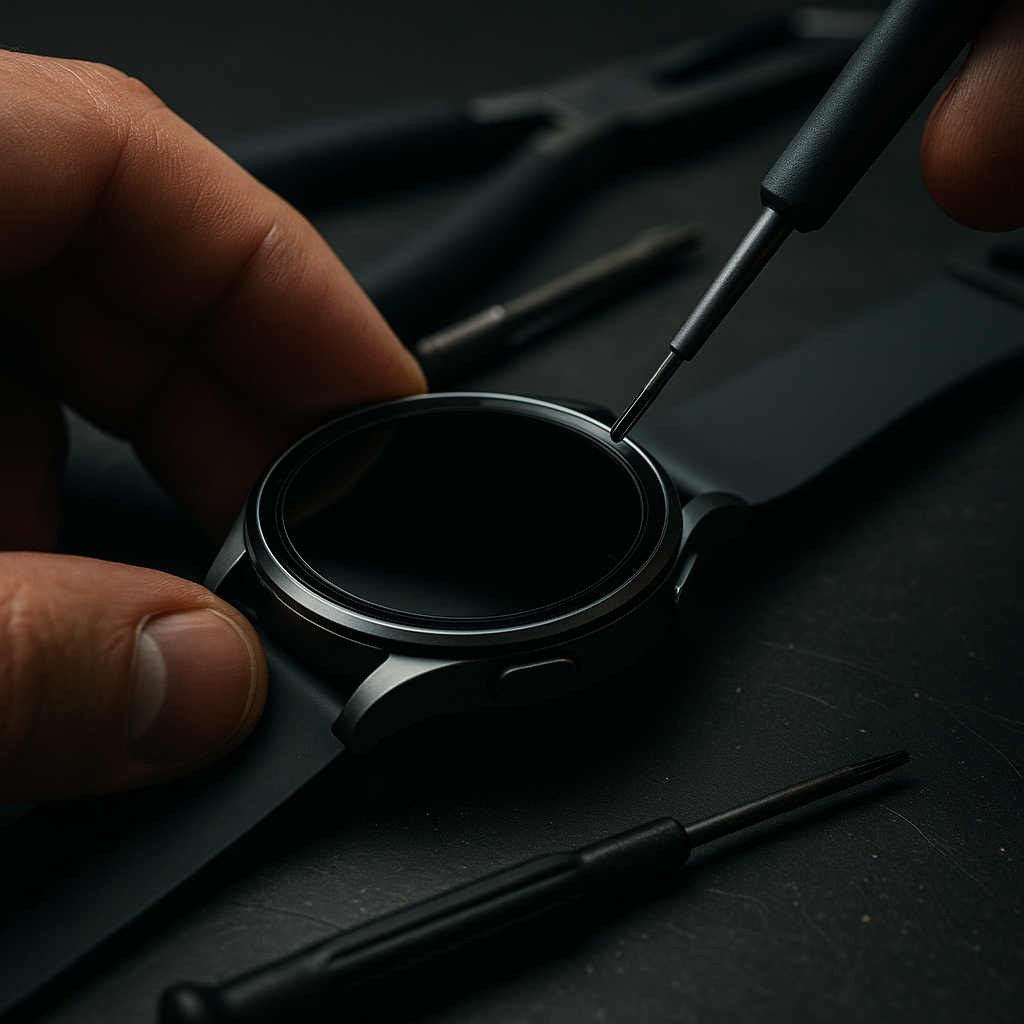
How to Fix a Samsung Watch That Won't Turn On
Your Samsung watch is an essential gadget that keeps you connected, tracks your fitness, and helps manage your time. But what happens when it suddenly refuses to power on? This frustrating issue can be caused by a variety of factors, from battery problems to software glitches. Below, we've compiled a comprehensive troubleshooting guide to help you get your Samsung watch back up and running.
Table of Contents
Back to the Ultimate Guide: Troubleshooting Samsung Watch Issues: Power and Charging Problems
Step 1: Check the Basics
Before diving into more complex solutions, start by checking the basics. Ensure that your Samsung watch has enough battery life and is correctly placed on the charger. Use the original charger and cable provided by Samsung to eliminate compatibility issues. If the watch still doesn't turn on, try a different power source or outlet to ensure it's not an electrical issue.
Step 2: Perform a Soft Reset
If your watch still won't turn on, a soft reset might do the trick. To do this, hold down the Home and Back buttons simultaneously for at least seven seconds. This will reboot the watch and can resolve minor software crashes that might be preventing it from starting.
Step 3: Charge Your Watch
If the watch is completely discharged, it might take a few minutes before it displays any signs of charging. Leave it on the charger for at least 30 minutes, and then try to power it on again. If it powers on but discharges quickly again, you might be facing a battery issue.
Step 4: Inspect for Physical Damage
Inspect your device for any signs of physical damage. Damage caused by drops or water can affect the internal components and prevent it from powering on. If you find any visible damage, consider seeking professional repair or contacting Samsung support for further assistance.
Step 5: Factory Reset (Caution)
If all else fails, you may need to perform a factory reset. This will wipe all data from your device, so it's advised as a last resort. To initiate a factory reset on your watch, go to Settings > General > Reset. Follow the on-screen instructions to complete the process. Note that this step is possible only if your watch can turn on to some extent.
Step 6: Seek Professional Help
If your Samsung watch still refuses to turn on after trying all the above steps, it's time to seek professional help. Contact Samsung support or visit an authorized service center to diagnose and repair any potential hardware issues.
Frequently Asked Questions
Ensure you're using the correct charger and cable. Clean the charging contacts on both the watch and the charger to prevent dirt buildup.
If the watch doesn't respond after being on the charger for 30 minutes, the battery might be completely depleted or faulty.
Yes, sometimes software updates fix bugs that can cause power issues. Ensure your watch has the latest software version installed.
Turn off the device immediately if possible and seek professional repair services. Avoid charging or turning it on to prevent further damage.