 PLAY
PLAYStep-by-Step: Using HDMI to Connect Xbox Series S to a Laptop
By Playloot Team · Oct 02, 2026
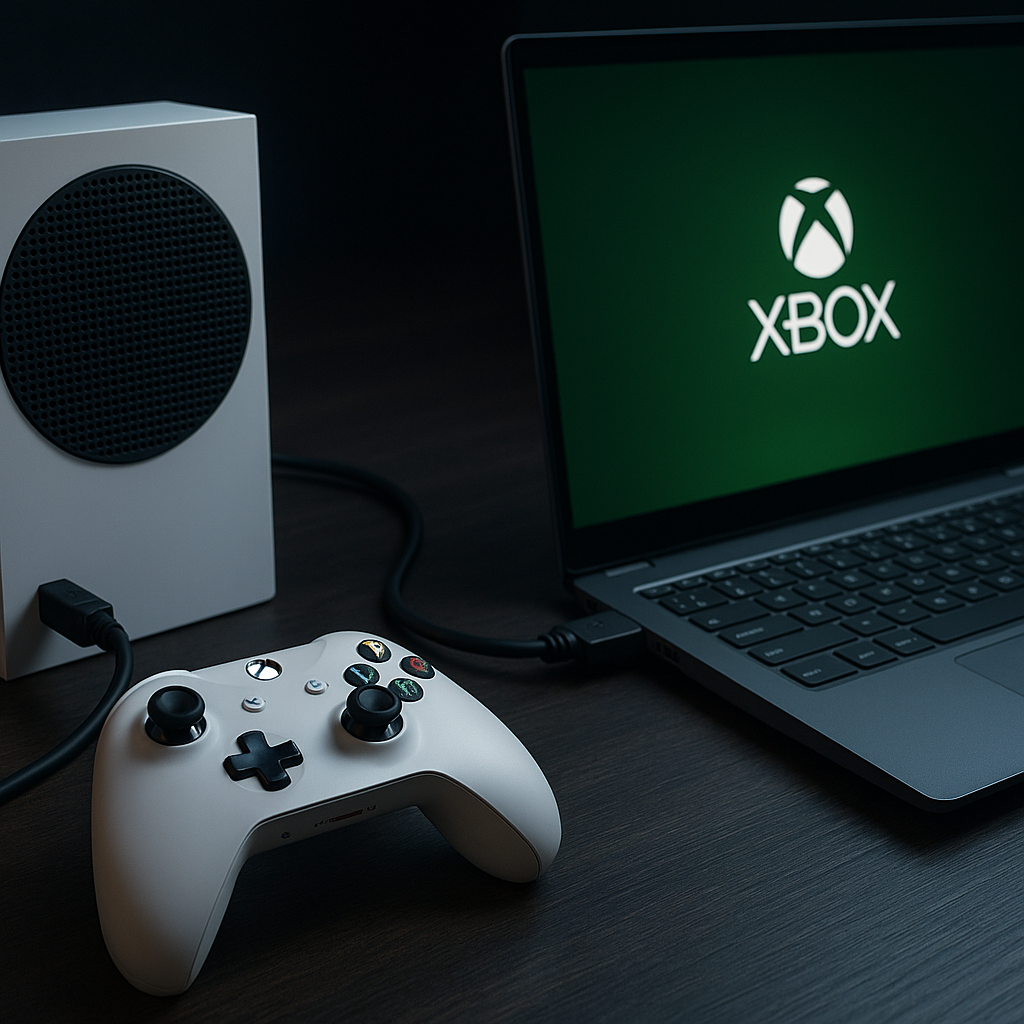
Step-by-Step: Using HDMI to Connect Xbox Series S to a Laptop
Whether you're looking to maximize your gaming setup or need a portable screen solution, connecting your Xbox Series S to a laptop via HDMI offers a convenient alternative. This step-by-step guide will walk you through the process, ensuring you can seamlessly enjoy your gaming experience. For a broader understanding and additional methods of connection, check out our comprehensive guide here: Back to the Ultimate Guide: The Ultimate Guide to Connecting Your Xbox Series S to a Laptop .
Table of Contents
What You Need
- Your Xbox Series S console
- An HDMI cable
- A laptop with HDMI input (Note: Most laptops have HDMI outputs, not inputs, so this requires a laptop with HDMI input capability or an alternative solution such as a capture card)
Step-by-Step Guide
Step 1: Prepare Your Devices
Ensure both your Xbox Series S and laptop are powered off before beginning the connection process. This precaution protects both devices from potential electrical damage and ensures the settings initialize correctly.
Step 2: Connect the HDMI Cable
Take your HDMI cable and attach one end to the HDMI output port on your Xbox Series S. Next, connect the other end of the cable to the HDMI input on your laptop. If your laptop does not have an HDMI input, you will need a capture card or similar device to facilitate the connection.
Step 3: Configure Display Settings
Turn on your Xbox Series S and then your laptop. Your laptop will need to detect the incoming signal from the Xbox. Go to the display settings on your laptop; this is often found by right-clicking on the desktop and selecting "Display Settings" on Windows, or through System Preferences on a Mac. Set your display input to reflect the HDMI connection.
Step 4: Adjust Audio Settings
In some cases, the audio might not automatically route to your laptop. To ensure seamless sound, check the audio output settings on your Xbox. Navigate to Settings > General > Volume & Audio Output, and ensure the correct audio output is selected.
Step 5: Test Your Setup
Launch a game on your Xbox Series S and verify both the video and audio quality through your laptop. Ensure there's no lag or delay. If you encounter issues, revisit the steps, check cable connections, and ensure all device drivers and settings are properly configured.
Conclusion
By following these steps, you can enjoy the Xbox Series S experience on your laptop, provided it supports HDMI input or you have equipped yourself with the necessary hardware. While it may require some preliminary setup, the mobility and flexibility offered by this configuration can enhance your gaming accessibility.
Frequently Asked Questions
Most laptops do not have HDMI input capability. A capture card or similar device is required for laptops with HDMI output only.
A capture card acts as an intermediary device that allows the HDMI output of an Xbox to be used with laptops and computers lacking HDMI input.
Gaming quality depends on the laptop's specifications and the HDMI cable used. A good quality connection can provide smooth gameplay.
Yes, you can use the Xbox app to stream games to your laptop, which doesn’t require an HDMI connection.
Yes, if you're using a capture card, it often comes with software for recording and streaming gameplay.