 PLAY
PLAYTop Xbox Series S Setup Tips for Optimized Gaming
By Playloot Team · Sep 22, 2026
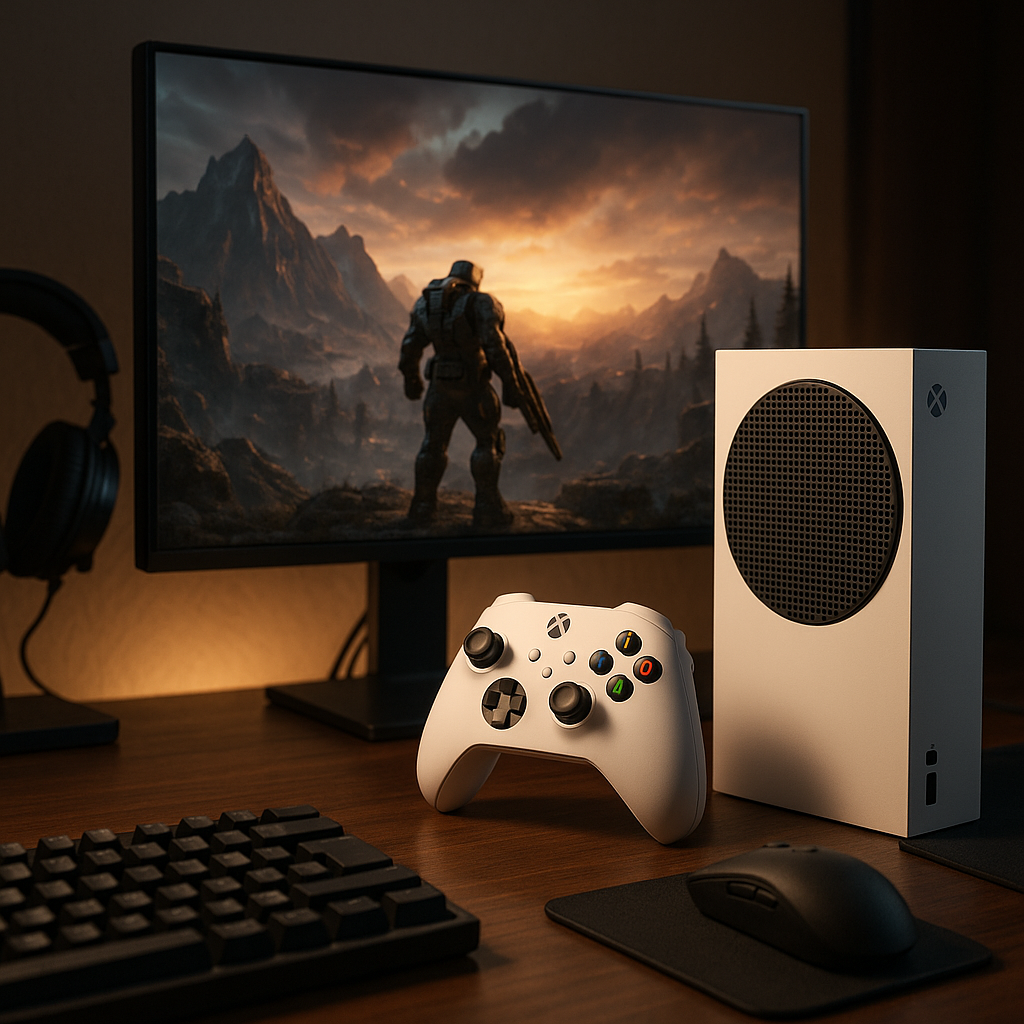
Top Xbox Series S Setup Tips for Optimized Gaming
Setting up a new gaming console can be both exciting and overwhelming. The Xbox Series S, with its compact design and digital prowess, offers a streamlined gaming experience. Yet, to truly harness its full potential, a proper setup is crucial. For an in-depth understanding of your Xbox Series S console, don't forget to check out our Back to the Ultimate Guide: The Ultimate Guide to Mastering Your Xbox Series S.
Table of Contents
1. Choose the Right Display Settings
The Xbox Series S supports up to 1440p resolution with 120Hz refresh rates. To maximize your display capabilities, navigate to Settings > General > TV & display options. Here, select your preferred resolution and, if it's supported by your TV or monitor, enable 120Hz for smoother gameplay. Remember, not every game supports 120Hz, so you'll need to experiment to find what works best for your setup.
2. Optimize Your Network Connection
A stable internet connection is key to an optimized online gaming experience. Use a wired connection via an Ethernet cable whenever possible to reduce latency and improve download speeds. If a wired connection isn't feasible, place your console as close to your router as possible and consider using a dual-band or tri-band router to allocate bandwidth effectively. Review and adjust your console's network settings under Settings > Network > Network settings.
3. Manage Game Storage
With only 512GB of internal storage, efficient management is crucial. Use external storage solutions like the Seagate Storage Expansion Card for Xbox Series S and Series X to boost capacity. In Settings > System > Storage devices, you can manage storage space by transferring games between internal and external drives, keeping your console's performance top-notch.
4. Set Up Quick Resume
Quick Resume is a standout feature of the Series S, allowing you to switch between multiple games seamlessly. Ensure it’s enabled via Settings > System > General > Sleep mode & startup. This feature holds several games in a suspended state, enabling you to continue right from where you left off in seconds.
5. Customize Your Controller
To personalize gaming controls, head to Settings > Devices & connections > Accessories. Customize button mapping to suit your gaming style and ensure your controller firmware is up to date for the best possible experience.
6. Take Advantage of Game Pass
XBox Game Pass is a subscription service tailored for gamers who want access to a vast library without purchasing individual titles. Explore the diverse catalog, including day-one releases, under My games & apps > Full library > Xbox Game Pass. This offers both old classics and the latest blockbusters at your fingertips.
7. Adjust Audio Settings
The right audio settings can immensely enhance your gaming experience. Investing in a good headset or sound system is a great start. Adjust sound options within Settings > General > Volume & audio output to find the perfect balance for immersive gameplay. Consider enabling spatial sound technologies like Dolby Atmos if supported by your equipment.
Frequently Asked Questions
The Xbox Series S can support up to 1440p resolution. It does not support native 4K, but can upscale to 4K for compatible displays.
Place your console close to your router, use a dual-band or tri-band router, and remove any physical obstructions that may block Wi-Fi signals.
Yes, the Xbox Series S is backward compatible with a majority of Xbox One games, as well as numerous Xbox 360 and original Xbox titles.
Use an external hard drive to transfer games, or re-download them from your library on your new Xbox Series S.
Yes, you can expand storage using the Seagate Storage Expansion Card, specifically designed for Xbox Series S and Series X.