 PLAY
PLAYA Comprehensive Guide to Connecting Your Xbox Series S to a Laptop
By Playloot Team · Oct 02, 2026
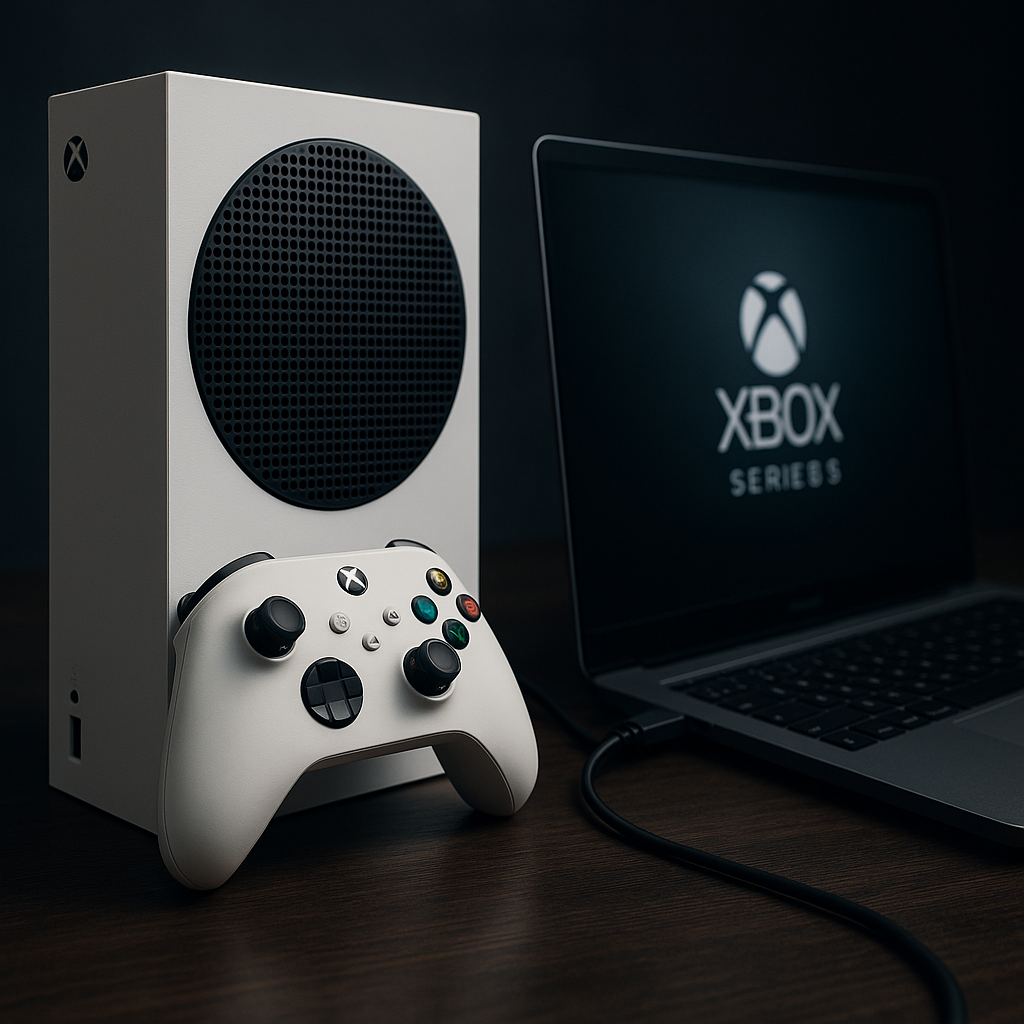
A Comprehensive Guide to Connecting Your Xbox Series S to a Laptop
Connecting your Xbox Series S to a laptop might seem daunting, but with the right guidance, you can easily set up this gaming experience without hassle. Whether you're looking to use your laptop as a monitor for your Xbox gaming sessions or wanting to stream games from your console to your laptop, our guide covers all necessary steps. This ultimate guide will walk you through various methods, providing a deep dive into each, with links to detailed guides on specific sub-topics that will enhance your understanding and help you resolve any challenge.
Table of Contents
Overview
As gaming technology evolves, so does the need for versatile setups that accommodate different lifestyles and environments. Whether you're living in a compact space, traveling, or simply want a dual-purpose setup, connecting your Xbox Series S to your laptop is an efficient solution. With this comprehensive guide, we will explore the options available, the equipment required, and the step-by-step processes to ensure a seamless connection.
Step 1: Understanding Your Setup Options
Before diving in, it’s important to know what options are available for connecting your Xbox Series S to a laptop. Generally, you have two main methods:
- Using your laptop as a monitor with an HDMI connection.
- Streaming games from Xbox Series S to your laptop using remote play or apps like Xbox app for PC.
Step 2: Equipment and Requirements
You'll need specific equipment and software to connect your Xbox Series S to a laptop. This section provides a checklist of essentials:
- HDMI cable and an HDMI input on your laptop (rare).
- Software, such as the Xbox app, for remote streaming.
- Stable internet connection for streaming options.
Step 3: Connecting Via HDMI
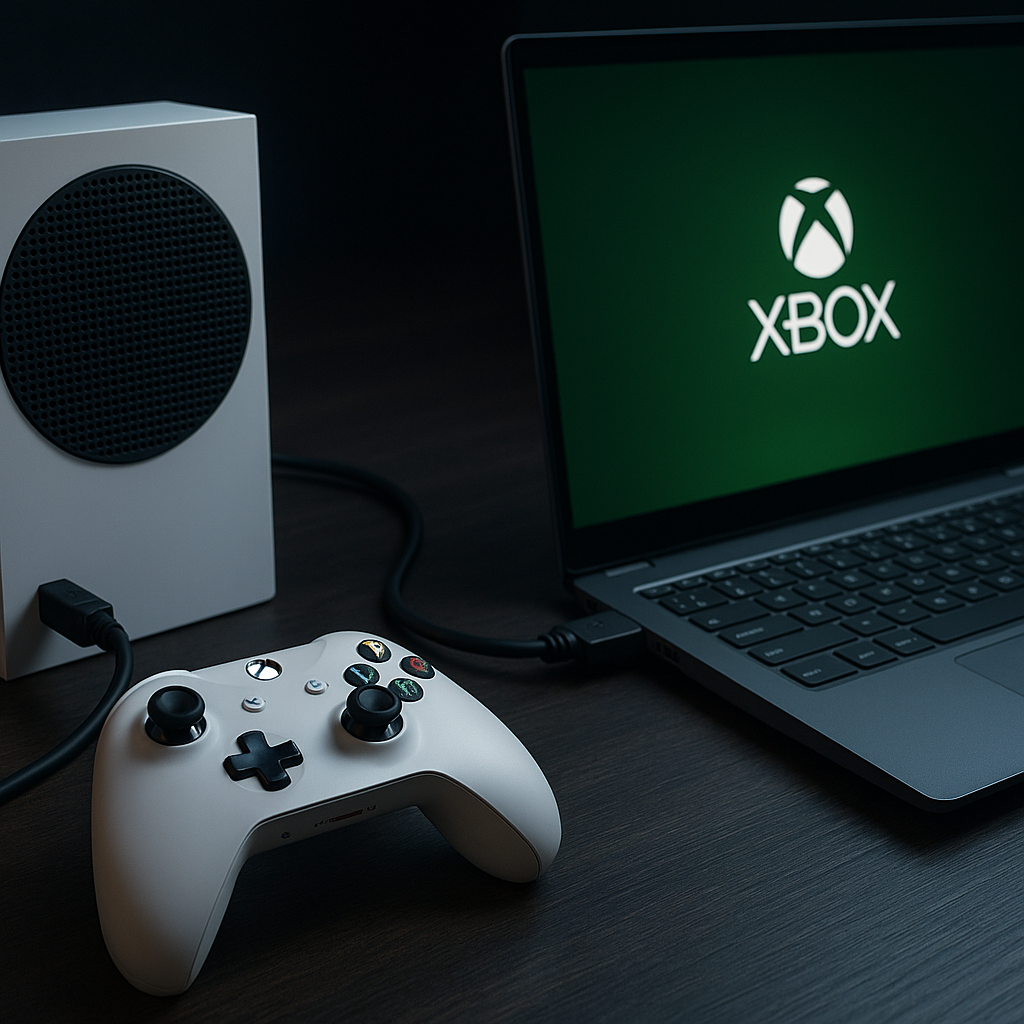
Using an HDMI connection can turn your laptop into a screen for your Xbox gaming. This method requires a direct HDMI input, which is quite uncommon in most laptops. If your setup supports this, here’s how you can do it:
- Turn off both the laptop and Xbox Series S.
- Connect one end of the HDMI cable to the HDMI out port on the Xbox Series S and the other end to the HDMI input on your laptop.
- Turn on the Xbox Series S and then the laptop. Your laptop should automatically detect the Xbox input.
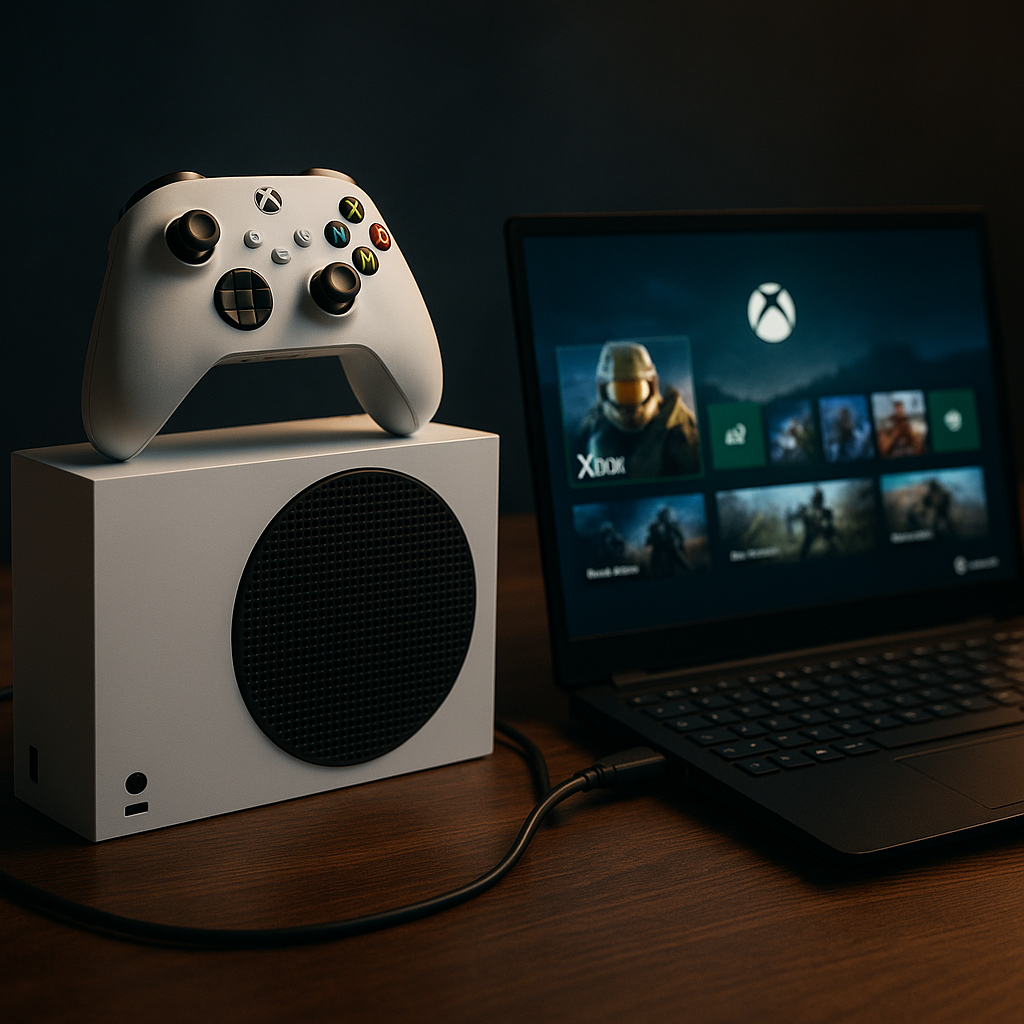
Step 4: Streaming Games from Xbox Series S to Your Laptop
Streaming your Xbox games to a laptop is an excellent alternative when an HDMI cable isn’t applicable. This process requires the Xbox app and a reliable network:
- Ensure both your Xbox Series S and laptop are connected to the same network.
- Download and open the Xbox app on your laptop.
- Sign in with your Xbox account and select the 'Connection' option.
- Follow the app's instructions to connect your Xbox Series S and begin streaming.
Common Challenges and Troubleshooting
Connecting devices can sometimes present challenges. In this section, we'll address common issues such as:
- Poor streaming quality and latency.
- Connection errors between Xbox Series S and laptop.
- Software updates and compatibility issues.
Conclusion
Connecting your Xbox Series S to a laptop opens up flexible gaming possibilities. This guide has provided an overview and steps for different connection methods. For more detailed explanations and troubleshooting, be sure to explore individual guides on specific topics.
Frequently Asked Questions
Not all laptops support HDMI input, which is necessary for direct connections. However, streaming via the Xbox app is a versatile alternative that works on most modern laptops.
Yes, a stable and fast internet connection is recommended for streaming to minimized latency and ensure high-quality gameplay.
Ensure both devices are connected to a fast wireless network and reduce background network traffic. Updating network drivers can also help enhance performance.
Currently, using a USB connection to play Xbox Series S games on a laptop is not supported. HDMI or streaming options via network connections are your best choices.
Check that both devices are on the same network and that you are using the correct Xbox account. Sometimes, restarting both devices can resolve connectivity issues.