 PLAY
PLAYHow to Calibrate Your Xbox Series X for 4K HDR on Any TV
By Playloot Team · Jun 13, 2026
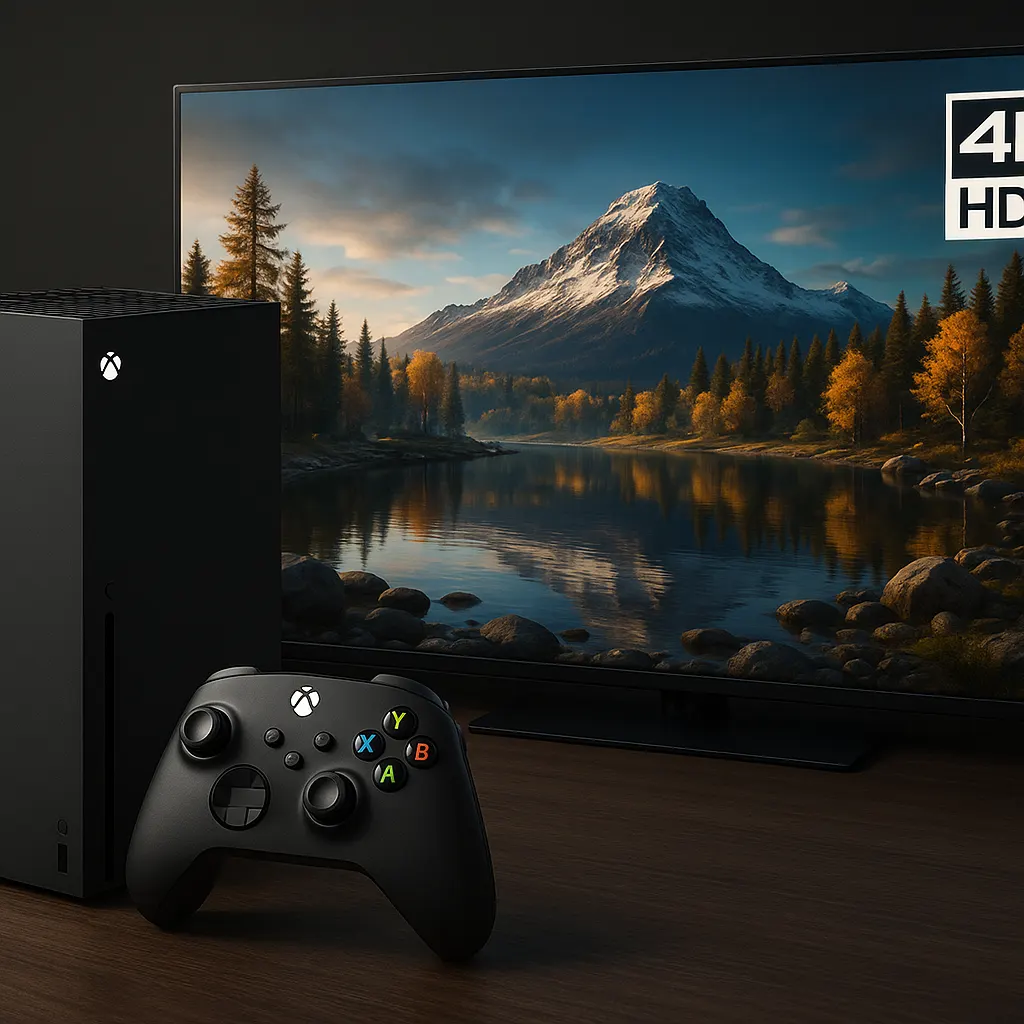
How to Calibrate Your Xbox Series X for 4K HDR on Any TV
Achieving the ideal gaming experience on your Xbox Series X involves more than just having the right console and a 4K TV; it requires proper calibration to enjoy high dynamic range (HDR) visuals in their full glory. Whether you’ve just unboxed your console or are looking to improve your current setup, calibrating your Xbox Series X correctly is essential.
Table of Contents
Before diving into the calibration process, it’s worthwhile to familiarize yourself with all aspects of enhancing your console's performance. For a comprehensive overview, check out our main guide: Back to the Ultimate Guide: Ultimate Guide to Optimizing Xbox Series X Settings for 4K TV.
Step-by-Step Guide to Calibrate Your Xbox Series X for 4K HDR
1. Check Your TV’s HDR Compatibility
First, ensure that your TV supports 4K HDR. You can usually find this information in your TV’s manual or manufacturer's website. Look for specifics on HDR10 support, as this is the standard utilized by Xbox Series X.
2. Enable 4K and HDR on Your Xbox Series X
Navigate to Settings > General > TV & display options. Here, select 4K UHD for the highest resolution. Under Advanced, select Video modes and make sure both 'Allow 4K' and 'Allow HDR10' are checked.
3. Calibrate Your TV
Every TV brand has different picture settings, but the most common settings you should adjust are brightness, contrast, and color saturation. For HDR, make sure the HDR setting is turned on in your TV menu. Many TVs have a specific HDR mode that can enhance the gaming experience even further.
4. Use the Xbox Calibration Tool
On your Xbox Series X, navigate to Settings > General > TV & display options > Color calibration. Follow the on-screen instructions to refine your brightness, contrast, and other settings. This tool ensures your TV settings and Xbox are perfectly in sync.
5. Check Game-Specific HDR Settings
Some games have their own HDR calibration settings. Access these under the game's visual settings menu to make adjustments for optimal gameplay. This is particularly important for maximizing contrast and brightness during dark scenes.
Conclusion
By following these steps, you can significantly enhance your gaming experience on Xbox Series X with a properly calibrated 4K HDR setup. Proper calibration not only improves visual fidelity but can also reduce eye strain during long gaming sessions, letting you immerse yourself in your favorite games like never before.
Frequently Asked Questions
No, not all TVs support 4K and HDR. You should verify your TV's specifications to check for HDR10 support, which is the standard used by Xbox Series X.
While personal preference plays a role, many gamers find that a TV size of 55 inches or more offers an optimal 4K gaming experience, especially for more immersive gameplay.
Ensure all necessary settings are enabled under TV display options in your Xbox, and check that your HDMI cables and ports support HDR. Additionally, confirm that HDR is activated in the console and TV settings.
It's recommended to use HDMI 2.0 or higher cables that are specifically designed to support 4K HDR. Older cables might not handle the required bandwidth.